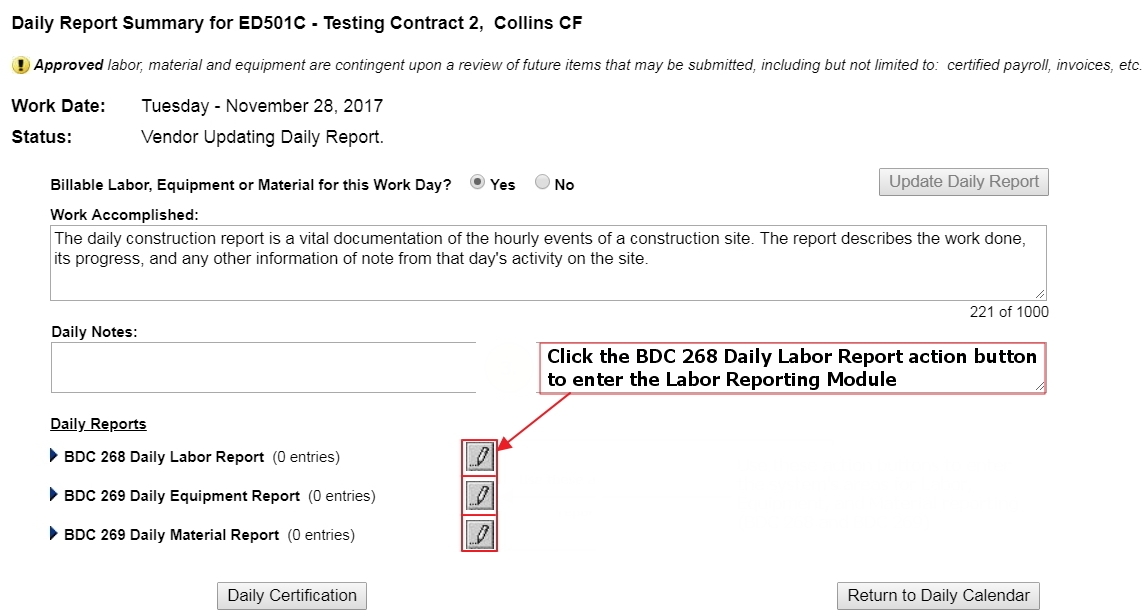
Click the BDC 268 Daily Labor Report action button to enter the Labor Reporting Module.
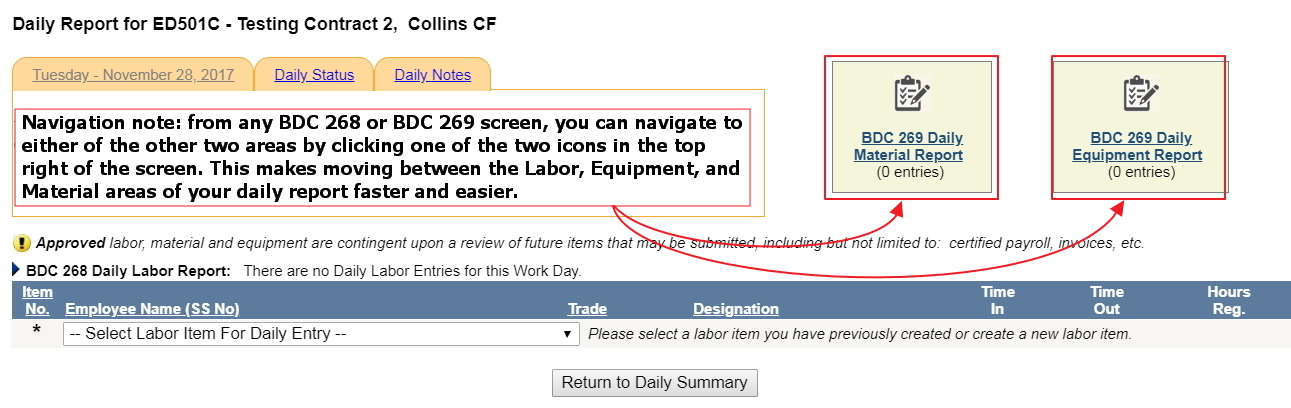
Navigation note: from any BDC 268 or BDC 269 screen, you can navigate to either of the other two areas by clicking one of the two icons in the top right of the screen. This makes moving between the Labor, Equipment, and Material areas of your daily report faster and easier.
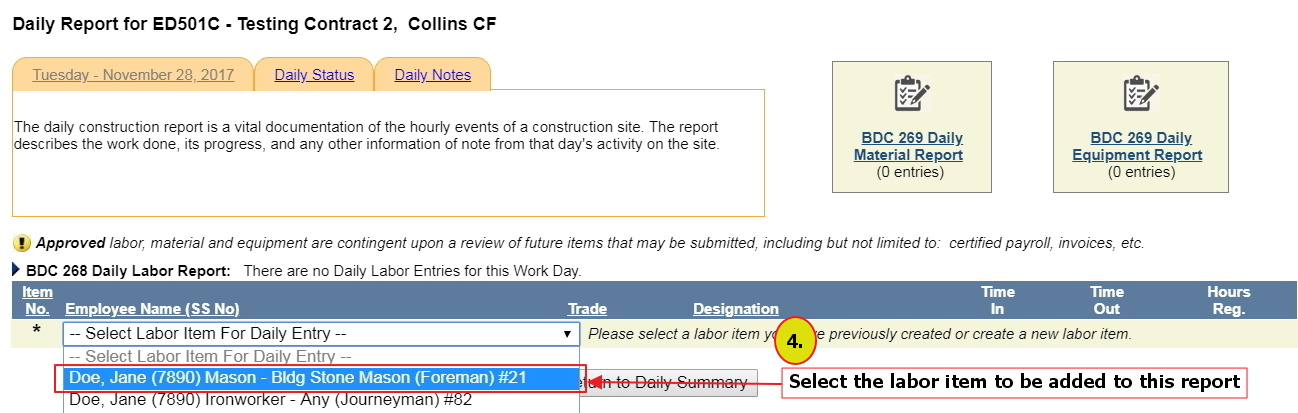
In the BDC 268 screen, select an employee from the drop-down list or select Create Additional Labor Item to create a new item (see Create a Labor Item). Here, we are selecting an existing labor item: Jane Doe, Mason…
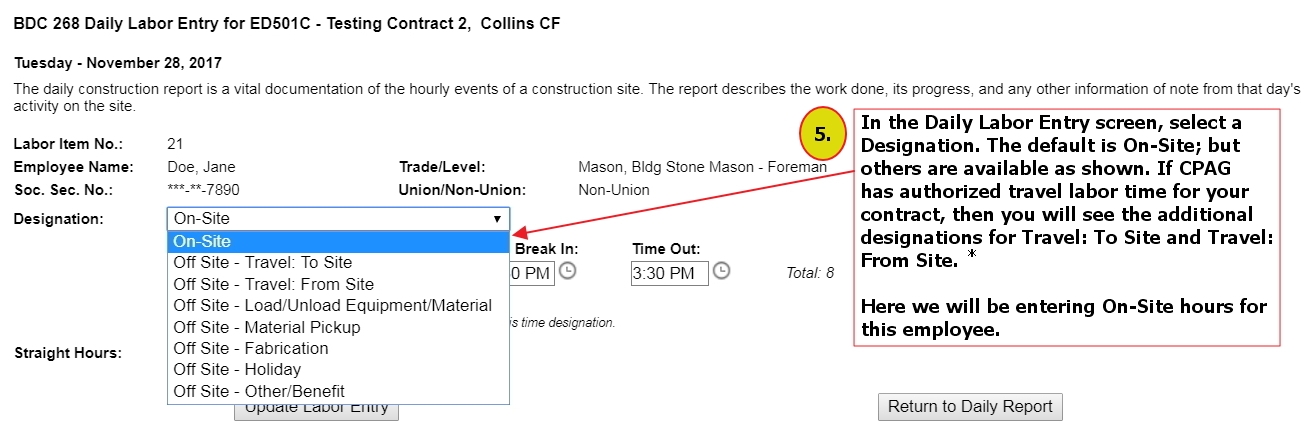
*The table below shows the necessary actions for each Off-Site designation:
| Designation | Action |
| Travel (to and from site) | Enter time, hours, and rates |
| Load/unload and Material Pickup | Enter time and hours |
| Fabrication | Enter time, hours, and rates |
| Holiday | Enter premium hours |
| Other/Benefit | Enter Comments, straight and/or premium hours |
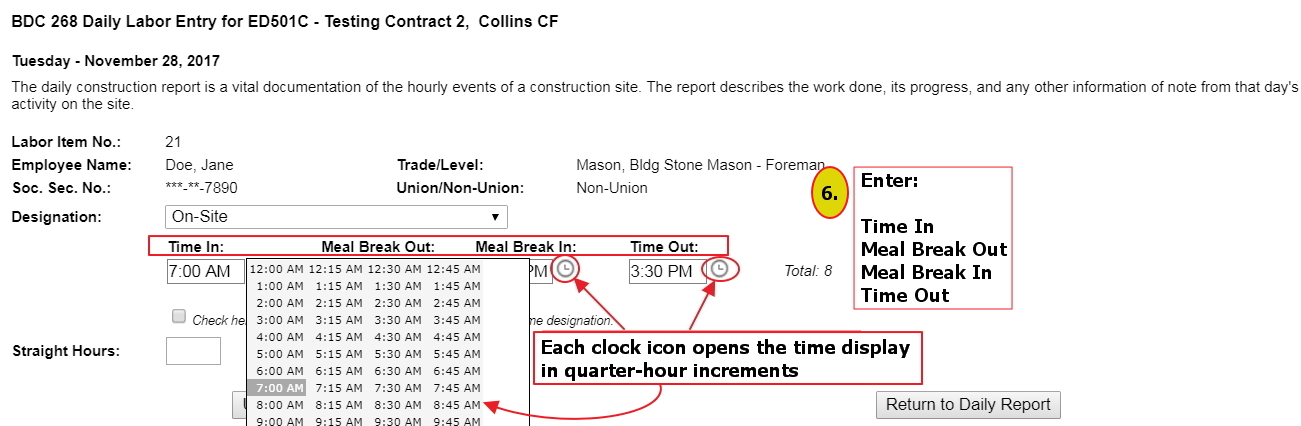
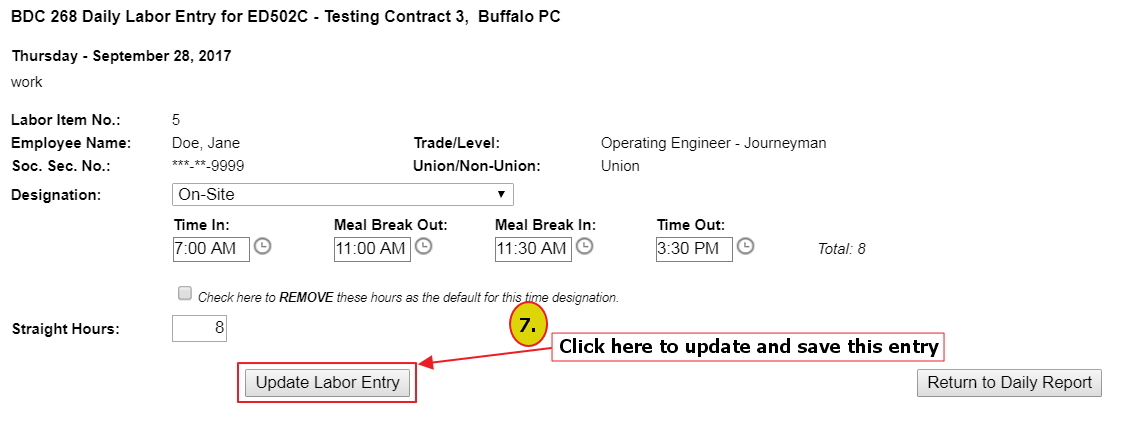
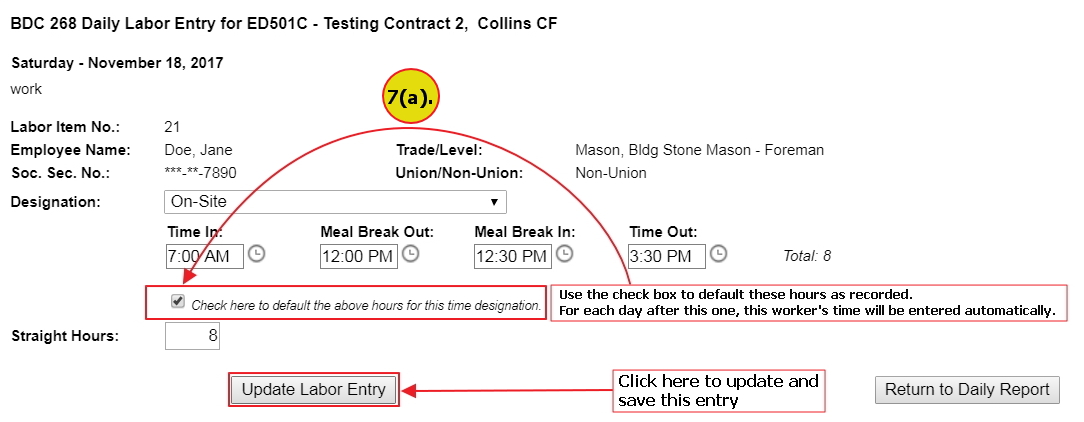
Here is a completed Daily Labor Entry. Note that the check box to default these hours for this designation has been selected. This is a convenience for you, as it allows you to automatically repeat this worker's time entries on future days for this designation. The default can be removed later by using the same checkbox, and time entry fields can be manually adjusted even when the default checkbox is selected.
Once the Update Labor Entry button has been pressed, it will go into this day's daily reporting.
Note that it is necessary to enter the total hours, even though the application auto-calculates them at the right of the Time Out field. If there are special circumstances necessitating a difference between the auto-calculated hours and those entered by you into the Straight Hours field, you should note this in the Optional Message field during Certification.
If overtime has been approved by the EIC for the day of this Labor Entry, an additional field for Premium Hours will appear below the Straight Hours field. The next section, below, contains instructions on entering and reconciling overtime hours.